Using a Google Pixel? 5 Features You Need to Enable Today
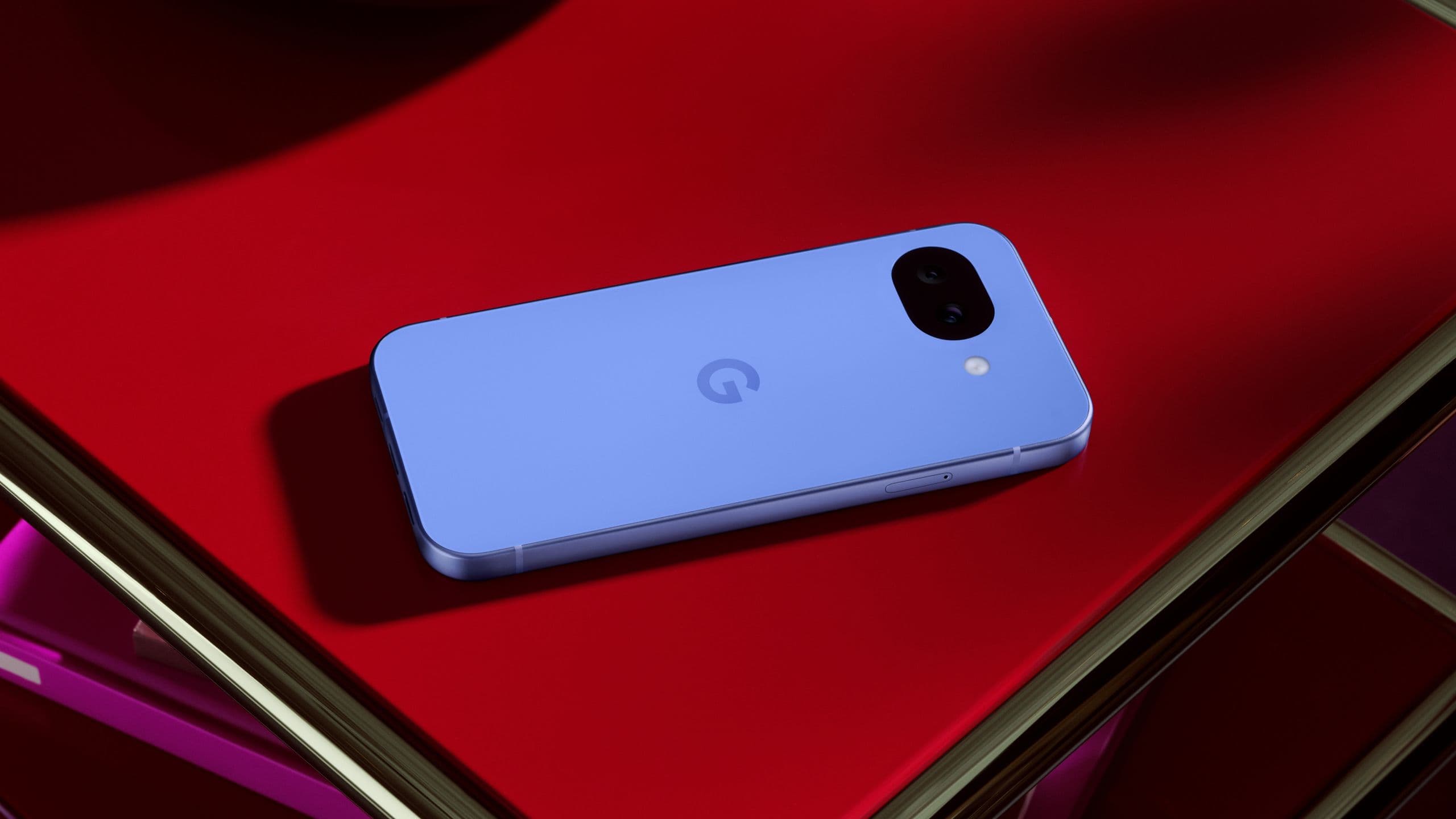
You have a Google Pixel phone, and you love the clean Android experience. But here is the thing—your Pixel is hiding some genuinely useful tools. They are buried in the settings, waiting for you to turn them on. These are not flashy AI features or camera gimmicks. These are practical, everyday tools that can save you time, reduce frustration, and make your phone feel a whole lot smarter.
Some of these Google Pixel features you need to enable today are so well hidden that even long-time Pixel users miss them. We are talking about features that let you copy text from any app without a screenshot, screen calls without picking up, and even find notifications you accidentally swiped away. Once you enable them, you will wonder how you ever used your phone without them.
Let us dive into the five Pixel features that deserve a spot in your daily toolkit.
The "Select" Button: Copy Anything Without Screenshots
This is probably the most underrated tool on any Pixel phone. It is hidden in plain sight, right in the app switcher view. Here is what it does.
What Is the Select Feature?
When you open the app switcher (the screen that shows your recent apps), you will see a "Select" button below each app preview. Tap it, and your Pixel instantly turns everything on the screen into selectable elements. You can then copy text, share images, or search for something directly from that screen—without even opening the app .
It is different from taking a screenshot. With a screenshot, you get a static image. With Select, you get the actual text and interactive elements. You can copy an address from a message, search for a product you saw in an Instagram post, or share a photo from an article, all without leaving the app switcher.
How to Use It
- Open the app switcher (swipe up from the bottom and hold, or tap the square button if you use three-button navigation).
- Look below the app preview. You will see two buttons: Screenshot and Select.
- Tap Select. The screen will highlight all the selectable elements.
- Tap on any highlighted section to copy, share, or search. For text, long-press to bring up the context menu with options like Copy, Share, and Search .
A Real-World Scenario
Imagine someone texts you an address in Google Messages. Instead of memorizing it or taking a messy screenshot, you open the app switcher, tap Select under the Messages preview, copy the address, and paste it straight into Google Maps. It takes seconds. The same works for phone numbers, email addresses, or any other text you see on your screen .
One limitation: Select only works with what is currently visible on the screen. If you need to copy something from lower down on a webpage, you will need to scroll to that part first, then use the feature again .
Call Screening & Call Assist: Never Answer Spam Again
The Pixel's call screening is legendary. It debuted with the Pixel 3 in 2018, and it has only gotten better . If you are tired of spam calls, robocalls, or simply want to screen calls without picking up, this is the feature for you.
What Does Call Screening Do?
Call screening lets you see a live transcription of what a caller is saying before you decide to answer. You can set it to work manually or automatically. If set to auto, your phone will answer unknown numbers, ask who is calling and why, and show you the response. If the phone detects spam, it will end the call automatically .
Hold for Me: Save Time on Customer Service
One of the most useful additions to Call Assist is Hold for Me. You have probably been there—you call customer service and get put on hold for what feels like an eternity. With Hold for Me, your Pixel waits on hold for you. When a live person finally answers, your phone alerts you, and you can pick up. You can go about your day while your Pixel does the waiting .
Call Notes: Never Forget Important Details
Available on newer Pixel models (like the 9 and newer), Call Notes listens to your calls, extracts the important information, and creates a summary . If you have ever scrambled to remember an appointment time or a meeting location after a call, this feature is a lifesaver. You need to activate it manually for each call .
Make Any Call a Text
If you absolutely hate talking on the phone or are in a place where you cannot speak, Live Captions can convert any phone call into text. It displays the caller's words on your screen, and you can type your responses, which the caller will hear . It is originally designed as an accessibility feature, but it is incredibly useful for anyone who prefers texting over talking.
Quick Tap: Your Phone's Hidden Extra Button
Quick Tap is a gesture that lets you launch shortcuts or apps by simply double-tapping the back of your phone . It sounds simple, but once you start using it, you cannot go back.
What Can You Do with Quick Tap?
You can configure Quick Tap to do almost anything :
- Take a screenshot
- Toggle the flashlight on or off
- Open any app on your phone
- Play or pause media
- Show notifications
- Launch Gemini or Google Assistant
- Open the Recorder app for quick voice notes
How I Use Quick Tap
As someone who attends a lot of meetings and briefings, I have Quick Tap configured to launch the Recorder app. Two taps on the back of the phone, and I am ready to record a voice note, no need to unlock the phone or search through the app drawer .
How to Enable Quick Tap
Navigate to Settings > System > Gestures > Quick Tap to start actions. Toggle it on, and then select the action you want .
Notification History: Recover Accidentally Swiped Notifications
We have all done it. A notification pops up, we swipe it away without looking, and then we realize it was something important. Notification History solves this problem.
What Does Notification History Do?
Notification History keeps a log of every notification that appears on your phone for the past 24 hours. You can go back and check messages, app alerts, or any other notification you dismissed accidentally . Once enabled, you will also see a shortcut to Notification History at the bottom of the notification shade .
How to Enable Notification History
Navigate to Settings > Notifications > Notification history. Toggle it on .
Smart Auto-Rotate: Rotation That Actually Works
Automatic screen rotation can be frustrating. You want your screen to rotate sometimes, but when you are lying down, it keeps flipping to landscape mode, and you have to fight it. The Pixel has a smarter way.
What Is Smart Auto-Rotate?
Instead of relying only on motion sensors, the Pixel also uses the front-facing camera to detect your face orientation. If you are lying on your side and your face is still parallel to the screen, the phone will not rotate. If your face orientation changes, the screen will rotate accordingly .
It sounds simple, but it makes a huge difference, especially during those late-night scrolling sessions when you are in bed.
How to Enable Smart Auto-Rotate
Navigate to Settings > Display > Auto-rotate screen (sometimes called Display & touch). Ensure Auto-rotate is enabled; the face-aware detection is built in .
Bonus Features Worth Enabling
Here are a few more hidden settings that can make your Pixel experience even better.
Adaptive Vibration
This feature adjusts the vibration intensity based on where your phone is . If your phone is on a desk, the vibration stays soft and quiet. If it is in your pocket or bag, the vibration gets stronger so you do not miss calls or notifications . You can enable it under Settings > Sound & vibration > Vibration & haptics > Adaptive vibration .
Custom Modes for Work, Sleep, or Gaming
Google's Modes feature is similar to Focus mode on iPhones. You can create different profiles for work, bedtime, driving, or gaming. On each profile, you can choose what to block and what to prioritize . For example, at work, you can block social media notifications but allow work emails and messages . You can enable this under Settings > Modes .
Live Transcribe
Live Transcribe is an accessibility feature that generates real-time captions on your screen for any audio. You can use it to create subtitles for videos, audio messages, or even for calls . It is not something you will use every day, but it is a lifesaver in specific situations. You can access it under Settings > Accessibility > Live Transcribe .
How These Features Compare to Other Phones
| Feature Google PixelOther Android PhonesiPhone | |||
| Select Button | Yes, built into app switcher | No (varies by manufacturer) | No |
| Call Screening | Yes, with transcription and auto-screening | No (varies by manufacturer) | Yes, Live Voicemail (similar) |
| Quick Tap | Yes, customizable double-tap back | Some brands have similar gestures | Yes, Back Tap |
| Notification History | Yes, built-in | Yes (some skins) | No (some third-party apps) |
| Smart Auto-Rotate | Yes, face-aware rotation | No | No |
| Hold for Me | Yes, built into Call Assist | No | No (some third-party apps) |
Should You Enable These Features?
Absolutely. These features are not just nice-to-haves; they are practical tools that can genuinely improve your daily experience. And the best part? They are all free and already sitting on your phone, waiting to be turned on.
Quick Summary: Pros and Cons
Pros
- All features are free and built-in.
- No need to download third-party apps.
- Features are easy to enable and customize.
- They solve common everyday problems.
Cons
- Some features are tucked away in settings.
- Some features like Call Notes are only available on newer Pixel models.
Expert Opinion
Google Pixel phones are celebrated for their clean software and camera prowess, but the real magic often lies in the details. The features discussed here are not just gimmicks; they are thoughtful additions designed to reduce friction in daily use. The Select button, for example, is a productivity powerhouse that no other Android skin quite replicates.
For Indian users, where spam calls are a significant nuisance, the Call Screening and Hold for Me features are particularly valuable. These tools are not just about convenience; they are about giving users control over their time and attention. In a world of constant notifications and distractions, these hidden features help your Pixel work for you, not the other way around.
Final Verdict
Your Google Pixel is already a great phone. But with a few taps in the settings, it can become genuinely exceptional. Enable the Select button for quick copying, turn on Call Screening to eliminate spam, configure Quick Tap for instant access to your favorite action, activate Notification History to never lose an alert again, and let Smart Auto-Rotate save you from rotation frustration. These are the Google Pixel features you need to enable today for a better, more productive experience.
FAQs
1. What is the Select button on a Google Pixel phone?
The Select button appears in the app switcher and lets you copy text, share images, or search for content directly from the app preview screen without opening the app .
2. How do I enable Quick Tap on my Google Pixel?
Go to Settings > System > Gestures > Quick Tap to start actions. Toggle it on, then choose the action you want, like taking a screenshot or launching an app .
3. What does Call Screening do on Google Pixel?
Call Screening answers unknown numbers, asks who is calling and why, and shows you a live transcription. You can then decide whether to answer, send a quick reply, or end the call .
4. What is Notification History on a Google Pixel?
Notification History logs every notification that appears on your phone over the past 24 hours, letting you recover any notifications you dismissed accidentally .
5. How does Smart Auto-Rotate work on Google Pixel?
Smart Auto-Rotate uses the front-facing camera to detect your face orientation, so the screen only rotates when your face orientation matches the screen orientation .
6. What is Hold for Me on Google Pixel?
Hold for Me waits on hold during customer service calls for you. When a live person answers, it alerts you so you can pick up the call .
7. What is Quick Tap used for on Google Pixel?
Quick Tap lets you double-tap the back of your phone to perform actions like taking a screenshot, toggling the flashlight, opening an app, or launching Gemini .
8. What is Adaptive Vibration on Google Pixel?
Adaptive Vibration adjusts vibration intensity based on where your phone is. It gets stronger if the phone is in your pocket and softer if it is on a desk .
9. What is Live Transcribe on Google Pixel?
Live Transcribe generates real-time captions for any audio on your screen, making it useful for creating subtitles for videos or audio messages .
10. What is Call Notes on Google Pixel?
Call Notes listens to your calls, extracts important information, and creates a summary. It is available on newer Pixel models like the Pixel 9 and newer