How to take epic selfies with the Galaxy S26 Ultra
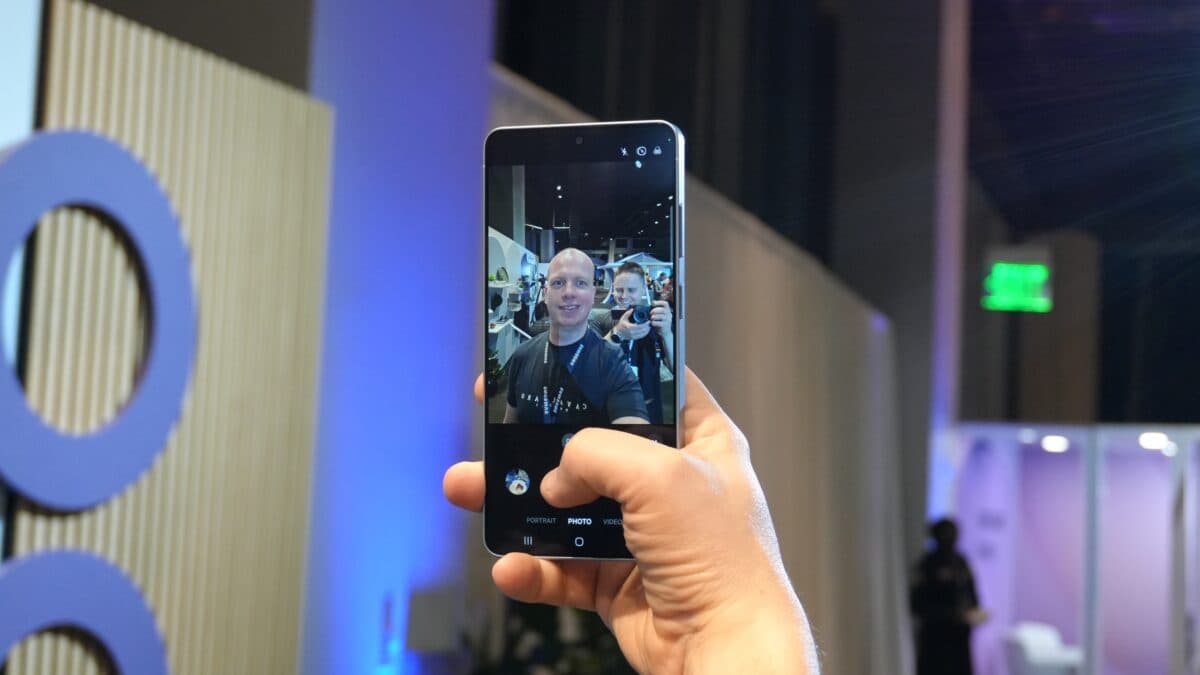
A larger selfie camera and improved picture processing really do make a difference.
The Galaxy S26 Ultra's front camera doesn't look all that different on paper. It’s still the same 12MP sensor Samsung has been using for the previous couple of years.
But really, there are a lot of little things that add up to one of the biggest selfie camera advancements in a long time.
What is happening? Bigger lens, smarter processing
First, Samsung moved to a new 23mm lens. It was 25mm prior. That additional width doesn’t sound like much, but it really makes a difference. You can fit more of the background, or squeeze in a larger group of people. Samsung has hit a nice spot at 23mm. It’s big enough that you don’t continually have to back into walls to get everyone in frame but not so wide that faces are distorted.
The second notable adjustment is around the phone’s selfies. Galaxy phones have had object-aware AI on the rear cameras for some time now, but this is the first time Samsung is bringing that AI down to the image signal processor (ISP) level for the front camera too. What does that mean in simple english? Before, all the AI processing — smoothing skin tone, boosting hair, making eyes pop – was done after you’ve taken the shot. Now it was built in the ISP so it happens in real time.
Basically, the S26 Ultra treats your eyebrows, hair and skin as three independent textures, each with its own “rules” in terms of how to sharpen and light. This creates more natural, less “processed” selfies.
The one place to look first
The first time you open the camera app, you are asked to choose your favourite colour tone: Natural or Warm. If you want realistic selfies I really recommend Natural. Works really well with the new AI ISP. Maintains real skin tones, small things like pores. That said, it’s wonderful that Samsung provides you the option for warmer colours as well, if that’s your preference.
The classic selfie tips (don’t overlook them)
- Before we get into the fancy things, let’s not forget the basics:
- Clean the lens. Really. A blurry lens spoils everything.
- Look at the camera, not at the screen. It feels strange because your selfies will look like you are making eye contact.
For pose and composition: Hold the phone a bit above eye level, and angle your chin down a tad. The wider lens of the Galaxy S26 Ultra naturally slims your jawline.
Pro tip: Use Camera Assistant to unlock hidden powers
Download the Camera Assistant app from the Galaxy Store. Inside, look for "Photo Softening" and turn it to "Off" or "Medium." Here's the tiny key to keeping your eyelashes and eyebrows appearing sharp instead of fuzzy . You are welcome.
If you’re switching from an iPhone you’ll adore these
Samsung offers a few genuinely brilliant features.
Show Palm is set to On by default. Just put your palm in front of the camera and it will start a timer — no more button pushing. Good for when you have the phone propped up or you have a group shot.
You can also give voice commands. When your hands are full, say “Cheese,” “Smile,” or “Capture” to take a picture.
Quick setup: Go to Camera Settings > Shooting methods (under General) and ensure “Show palm” is active. And then wave at your selfie.
Timer for multiple screenshots
Here's another one I like. Still in camera settings, scroll all the way down to Camera Assistant and see if you have “Timer multi-photo options”. I programmed it to shoot numerous photographs with a short pause in between. This is great for couples or groups of friends on holiday making crazy postures - you'll have a big burst to select from.
If you want full control then shoot RAW
Remember you can take selfies in RAW. Want to preserve the HDR effect? Expert RAW mode. Want a RAW file without the HDR look? Change to Pro mode. Tonnes of room for editing later.
Style your selfies with AI (this is my new hobby)
I’ve been testing this phone for a few of weeks and Samsung’s new AI designs have become a bit of an obsession of mine. They’re a big step forward from what the S25 Ultra provided.
The major difference? The AI styles now look quite close to the original photo. So once you’ve been styled, you, your pals and even your pets still look like yourself – only with a fun twist. This functionality is baked right into the gallery app and it makes playing around with selfies a whole lot of fun.
AI Photo Assistant and generative edits
Samsung also has an AI suite that’s ideal for eliminating photo bombers. You take the perfect selfie, but some random stranger is in the backdrop. Open the photograph in the gallery , touch the AI button and then just select that person . They will be erased and filled in automatically with generative edit.
The Galaxy S26 Ultra features natural language prompting for all photographs, including selfies. You can literally write anything like ‘change my blazer to a T-shirt’ or ‘turn this morning to night. The AI is context-aware — it maps the lighting, shadows and perspective of the source image, so it generates realistic reflections and shadows that fit the scene. So much more realistic than before.
One additional thing. Edit History
And, for the first time, you receive a step-by-step editing history. So if you test a few different adjustments you can go back and tweak or undo particular steps without having to start from scratch. Massive time saver.
[1] Galaxy AI - Some AI capabilities require Samsung account login. Galaxy AI features are free. In the future, extra sophisticated features will be offered as part of a premium subscription plan. Third-party AI capabilities may be described differently.
[2] Photo Assistant by Galaxy AI - Requires network connection and Samsung account login. The saved image is overlaid with a visible watermark indicating it was generated by Galaxy AI. We make no warranty as to the correctness of the output.